Hello!
My name is Chris Parker and I’m a photographer and graphic designer that has been using Photoshop professionally since 1991. Yes, I’m that old. But, that just means I have a lot of pro experience to share with you.
I’ve also been teaching other creative artists on how to use Photoshop for the last 10+ years.
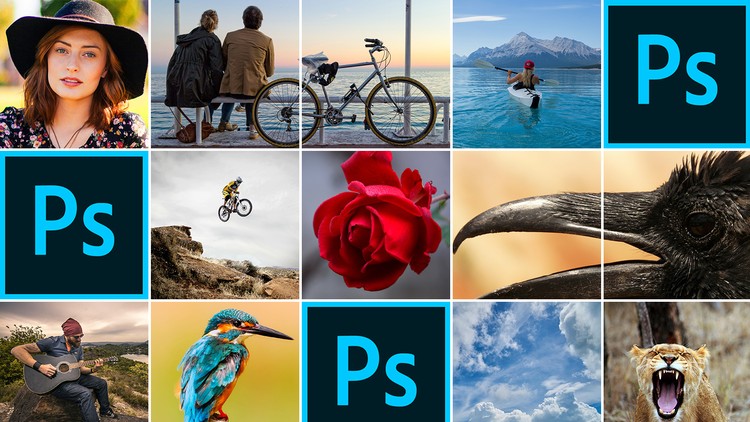
This course includes 7 Photoshop courses in 1! Learn Photoshop retouching, image editing, portrait editing, portrait retouching, RAW retouching, JPG retouching, photo editing, special effects and more.
Check out what a recent student had to say about this Photoshop course…
“Chris is obviously very much in love with what he does. This is equally important as knowing stuff and being able to teach stuff, in my opinion. I am 100% satisfied with this course. He responds to questions within a day! And he obviously cares about what his students think. I totally recommend this course for beginners. He covers everything and he seems to know everything about photoshop.”
~ Busra
…and another…
“A heart felt thanks to Chris Parker for such a comprehensive Adobe Photoshop course. Highly recommend course for every photographer & graphic designer to become more creative and productive.”
~ Hassan
…and another…
“I have already done several courses with Chris and I think he is a great teaching professional. To be a good teacher, not only do you need high technical knowledge, but you also have to know how to communicate it to the students.
Also, in my case, the English language is not my native language, I appreciate very much that Chris speaks slowly and with a "neutral" accent, which allows me not to have to "rewind" because I have not understood the sentence in English. Thanks, Chris.”
~ Juan
*********
So, I have a question or two for you. Are you new to Photoshop and/or struggling to learn Photoshop on your own?
Then, this course is perfect for you.
In the beginning you’ll learn the basics of Photoshop and as you work your way through the course we’ll cover more advanced Photoshop projects.
You can then take your new Photoshop skills and begin getting paid for it!
How?
Either apply your knowledge to your own images for your photographic studio or take on freelance work for editing, re-touching, color correction, and even graphic design (we’ll cover graphic design projects later in the course: how to use/add text, create logos, web design and more).
Yes, it is possible to learn everything you need to know about getting started with Photoshop in one course.
With over 33 hours of Photoshop content and 7 Photoshop courses in 1, with more tutorials being added on a regular basis, you can learn Photoshop essentials and advanced projects in this 1 Photoshop course.
This Photoshop course is perfect for both photographers and graphic designers.
******
Oh, and this course was designed for beginners in mind. You do not need any previous knowledge of Photoshop, photography or graphic design.
******
“I love how clear and easy this is to follow along. I feel like I am learning so much, and I am only part way through the class. I definitely recommend this if you want to learn Photoshop, and improve your workflow with it!”
~ Jeron
“Great job. Clearly explains the details in a way you can follow and understand. Good response to questions. Photoshop has so much to offer it takes somebody who can really organize the flow and the delivery and Chris does a wonderful job. Highly recommended.”
~ Chuck
“I love this course! I'm not even finished and I've already learned so much! Chris Parker speaks clearly and zooms in to show you where he's at. I appreciate this a lot. Can't wait to create another book cover or create a fun family picture with my new skills! Thanks for doing such a great job, Chris!”
~ Pixie
*********
Here is a complete list of everything you’ll learn in this Photoshop course.
Section 1: Photoshop Crash Course for Beginners!
Here you’ll download all course resources: photo files and the exclusive Photoshop Essentials Guide.
The Photoshop Essentials Guide is designed to be used with this Photoshop course. Print it out and use it to take notes. Plus, each lecture is summarized in the guide for easy reference when offline.
Throughout the remainder of this section you’ll learn key essentials all Photoshop users should know…
-
How to use the Home Screen
-
How to create new files
-
How to use and setup the Photoshop interface
-
How to open your images (there are several ways to do so)
-
How to work with multiple files that are open at once
-
How to save and export your files
Section 2: Quick Start Photoshop for Image Editing
Learn the 3 most requested things Photoshop beginners want to know…
-
How to make your images “POP”
-
How to retouch your photos in Photoshop
-
How to re-size and save your images for social media
Section 3: Photoshop Course 2: Photoshop Layers: What They Are & How To Use Them
You’ll learn all about layers in the “digital world” AND the “real world”. Why?
Knowing how I used layers (before there were layers) will help you better understand how and why layers are an essential Photoshop skill.
Discover the 12 different types of Photoshop layers, an overview of the layers panel and much more.
Oh, and this is the beginning of the second Photoshop course. The first one was the first 2 sections: “crash course” + “quick start”.
Section 4: How To Edit Your Photos, in Photoshop, Like a Pro!
In this section, you’ll learn the power of Photoshop Adjustment Layers (and what they are and how to use them).
Section 5: How to Maximize Color in Photoshop
Understanding the color of light, color in general and how to manage it in Photoshop is critical for getting the results you want.
Learn how to “see” color and pro tips for managing color.
Section 6: How to Edit RAW Files In Photoshop
Learn the difference between RAW & JPG and which one is better (and why).
Section 7: Image Processing & a Photoshop Workflow
You’ll learn my thoughts on processing and you’ll learn from my own personal workflow. The same workflow I’ve used on millions of edits.
Section 8: How To Use Photoshop Adobe Camera Raw plugin… Or Also Known As: ACR
Learn the ins-and-outs of editing your RAW (and jpg if you prefer) files in ACR.
You’ll learn all of the following
-
White Balance, what it is and how to adjust it (properly)
-
a lesson on the Histogram and why it’s important to use before and during editing
-
a quick overview of the Photoshop ACR interface
-
How to make adjustments to improve the dynamic range of your photos
-
How to use the power of Tone Curves to improve your photos
-
How to sharpen your photos (properly)
-
How to use the HLS + Color for editing your images
-
How to use the lens correction to fix distortions
-
How to add a vignette, grain and use the de-haze tool
-
How crop & straighten your photos in Photoshop ACR
-
How to remove spots in ACR
-
How to use the graduated filters to improve your photos
-
How to use the target adjustment tool to precisely control your edits
-
How to merge multiple images for an HDR effect
-
How to merge multiple images to create a panoramic
-
How to remove “red eye” (and pet eye) in ACR
Section 9: How to Crop, Straighten and Fix Perspective in Photoshop
Although you learned how to crop your photos in ACR, you’ll learn how to do so directly in Photoshop.
Plus, learn how to straighten and fix perspective issues with Photoshop.
Section 10: How to Convert Color Images to B&W
First, you’ll learn 3 ways NOT to convert your images into B&W.
Then, you’ll learn how the pro’s convert to B&W for full creative control.
Section 11: How to Precisely Edit Your Photos in Photoshop
You’ll now learn some additional ways to edit your images, like a pro.
-
Here are a few things you’ll learn in this section…
-
Learn what the dodge, burn and sponge tool are used for
-
How to use the dodge and burn tool to edit your images
-
How to use the sponge tool to edit your images
-
How to use the dodge and burn tool with blending modes
-
How to use the dodge and burn tool with gradients
Section 12: How to Use the Tone Curve in Photoshop
We’ll expand on your knowledge of the tone curve tool (based on what you learned in ACR first). Learn how to use it directly in Photoshop and you’ll learn some basic color corrections that can be done with the curves tool.
Section 13: How to Use the Levels Tool in Photoshop
You’ll learn how to use the Levels tool to edit your photos. We’ll start with the basics and then you’ll learn how to add contrast with it.
Section 14: How to Use Photoshops Stamp Tool
We’ll start with a quick overview. Then, you’ll learn how to use the stamp tool to edit your photos.
Section 15: How to Use the Healing Tools in Photoshop
The Heal Tool is a powerful tool all retouchers should learn how to master. There are several tools within the “Heal” category that can be used for a variety of retouching challenges.
You’ll learn about each and when/why to use it for specific retouching projects.
Section 16: How to Use the Select Tools in Photoshop
“Selecting”, in Photoshop, is another one of those skillsets you’ll need to master in order to fulfill your creative vision. There’s a lot of selection tools to get the job done.
You’ll learn about all of them and how to use them. Including…
-
How to use the Marquee Selection tool
-
How to use the Lasso tool
-
How to use the Magic Wand tool
-
How to use the Quick Mask mode
-
How to use a Mask selection
-
How to use the Content Aware Fill tool
-
How to use the Color Range tool
-
How to use the Select Subject tool
-
Take your knowledge, and the provided photo, to make a selection of an outfit and change the color
-
Plus, learn advanced selection techniques to “select” and edit your photos
Section 17: How to Use Blending Modes, in Photoshop, For Creative Edits
Blending Modes are another part of “layers”. They can be used for creative editing effects not possible with other tools.
First, we’ll start off with the basics of blending modes and how they work.
Then, we’ll cover each group of blending modes and learn what type of editing effects to expect for your artwork/photos.
Section 18: How to Use Photoshop Filters For More Creative Edits
Take your creativity to the next level with Photoshop filters. Learn what they are, where they are and how to use them for your creative vision.
Section 19: Learn Additional Photoshop Layer Tips: for Graphic Designers
This section is focused on layer skills all graphic designers should know!
-
How to align layers
-
How to stack, copy + delete layers
-
How to organize your layers, like a pro
Section 20: Learn How to Use Photoshop Brushes
All creative artists should know how to use brushes in Photoshop. They are essential for editing, drawing, painting, design and more.
First, you’ll learn the basics of the brush tool. Then…
-
How to adjust brush options
-
How to create a custom logo brush
-
Learn the difference between brushes vs. the pencil
-
How to use the color replacement tool
-
How to use the “history” brush
-
and more tips along the way
Section 21: Learn How to Output Your Files From Photoshop
Once you’ve completed your creative masterpiece it’s time to share it with the world! Learn about different file formats, saving and more.
Section 22: How to Use the Eraser Tool in Photoshop
Sometimes you just need to get rid of something, fast. Introducing the Eraser tool, how to use it to remove backgrounds and more.
Section 23: How to Use the Frame Tool in Photoshop
This new Photoshop frame tool is something I desired during my 30 year career as a graphic designer. It’s an awesome new tool all graphic designers will want in their toolbox.
Learn what it is and how to use it.
Section 24: How to Use the New Content Aware Fill Tool in Photoshop
Another new awesome Photoshop tool. This tool is intelligent and will make a breeze at retouching your photos. Learn what it is and how to use it to retouch your photos.
Section 25: How To Be More Productive in Photoshop
Now that you know the basics of Photoshop it’s time to improve your productivity. Some of this stuff is boring. However, it’s imperative to a fast and productive workflow. Especially for working professionals where time is money.
-
How to adjust the Photoshop preferences for optimal performance
-
How to adjust Photoshop color preferences for consistent results
-
How to adjust menus based on your own specific requirements
-
How to save 1 hour for every 8 hours worked!
-
How to use the zoom + hand tools like a pro
-
and much more
Section 26: How to Use Adobe Photoshop Bridge to Manage Your Digital Assets
Adobe Bridge is a free plugin included with Photoshop. You can use it as a file manager to organize, search, add metadata and more…
-
You’ll learn the basics of Bridge
-
How to adjust the Bridge preferences for optimal performance
-
How to adjust the Bridge workspace
-
How to use favorites + collections for organizing your files
-
How to improve your organization with keywords, ratings and labels
-
How to quickly find any photo (providing you did some of the above) with search + filter
-
How to add copyright metadata to your files (and more)
-
Plus, my personal workflow with Adobe Bridge
Section 27: How to Use Photoshop Actions
Photoshop actions are another powerful tool for helping you streamline your workflow.
Learn how to record specific steps you take to edit your photos and save it (as an action) to be re-used on other photos.
Section 28: Photoshop Course 3: Light Effects
This Photoshop course (included for free) provides valuable lessons on how to use 5 awesome Photoshop tools that will allow you to; add light, enhance existing light, enhance and add color to your sunsets and sunrises, create lens leaks, add lens flare and much more.
Included with this course are the images used in each lesson. Use them to follow along as you learn! This is a great way to increase the learning process. Plus, submit your practice files for feedback!
First, you'll learn about the 5 tools that are used throughout the course; Adjustment Layers, Adjustment Layer Masks, Curves, Levels & Gradients.
Then, you will be able to confidently use them while watching the lessons. By the time you're done with the course & practice files, you'll be able to achieve the same look on your own photos.
Each lighting effect is taught in bite-size, step-by-step lessons to better grasp each step of the process.
You will also see how different Blend Modes effect the final results, how to use opacity, keyboard shortcuts and much more.
A comprehensive resource file is included that has all of the keyboard shortcuts used throughout the lessons. And, each video will display the keyboard shortcut used at that time!
Section 29: Photoshop Course 4: Zombie Apocalypse
In this course you’ll learn all the tools I use to create custom Zombie’s, in Photoshop, from ordinary portraits. Plus, you’ll also receive my Zombie Apocalypse Photoshop action (includes 3 versions) that will easily and quickly transform your ordinary portrait into a Zombie… all in under 2 minutes!
Once you know how to create a Zombie, from the Photoshop action, I’ll then walk you through all the different tools, tips and techniques that I use to create custom Zombie portraits.
First, you'll install the 3 Zombie Photoshop actions, 20+ skin textures and 10+ blood brushes that come with this course and then you'll run the Photoshop action. I’ll explain what needs to be done for best results and additional tips.
Once you know the basics, you’ll be able to transform your ordinary portrait, into a Zombie, in 2 minutes or less.
Then you’ll begin learning advanced techniques for customizing your Zombie to fulfill your creative vision. This course has been structured for all levels of Photoshop users, from beginners to more experienced users.
Plus, bite-size (each lesson is around 5 - 6 minutes) detailed explanations and Photoshop keyboard shortcuts are included for you as well. All keyboard shortcuts are displayed, throughout the tutorials, for easy and quick reference.
Some of the tools you’ll learn throughout the course will include…
-
the Free Transform Tool
-
Layer Styles
-
Blending Modes
-
Layer Masks
-
…and much more
Each tutorial is jam packed with shortcuts, tips and techniques for creating one-of-a-kind Zombies! Plus, as an extra bonus, you'll also receive 20+ additional wound overlays for customizing your Zombies. This includes skin lesions, open wounds, bullet holes and more. You’ll learn how to add them to your Zombie portraits and customize for a “natural” look.
Once you’ve completed this course you’ll be able to easily and quickly create gory Zombie portraits your friends and/or clients will be DYING for.
Section 30: Photoshop Course 5: How to Transform Photos With Fall Colors
Hello and welcome to my Photoshop Fall Edits for Outdoor Portraits & Landscapes!
In this Photoshop course I share how to easily and quickly transform ordinary, boring, green foliage into beautiful, vibrant and colorful Fall colors.
It's super easy. So easy, you can could create this transformation within a couple of minutes.
So, the question is, why does it take over an hour to explain? Well, I'm sharing more than how to achieve this creative edit.
Not only do I share the fundamentals of the tools being used... like layers, layer masks, blending modes, ACR and more... but, I'm also going to share my 3 step editing workflow! This is the same workflow I use to edit hundreds of images PER hour!
As a professional photographer, it's imperative to spend less time in front of the computer and have more time for more clients. That doesn't mean we cut corners and ignore the creative process. Instead, we prioritize with the end in mind. You'll learn my basic premise for editing in general and exactly where your editing should start... Hint: it's not in Photoshop.
Section 31: Photoshop Course 6: Cinematic Edits
Hello and welcome to my Photoshop Cinematic Photography Effects course!
Have you ever wondered how Hollywood creates those stunning, cinematic colors and wished you could apply to your photos? Well, wonder no more. This course will teach you how to add Cinematic color style effects to your still photography - all in Photoshop!
You will learn how easy it is to apply those Cinematic effects directly in Photoshop. No filters, plugins or other tools required. Everything can be done directly in Photoshop within minutes.
Plus, I'll share with you my favorite keyboard shortcuts, editing process and more to streamline your Photoshop workflow.
You'll be amazed how easy it is to create this trendy photo effect in Photoshop. You'll also learn what Color Grading is and how to apply to your images.
First, you'll start of learning all the basics in the, well, Basics section. :)
This includes learning all about the Curves tool (how to use, tips and more), how to use Adjustment Layers (plus Masks) to streamline your workflow, an awesome (free) tool for finding complimentary colors (which are important for achieving the Cinematic style), how to color correct an image in 5 seconds and much more.
Once you've mastered the basics, you'll move on to learn 3 different ways to create the Cinematic style within Photoshop.
Want feedback?
Projects include the same photos used in the course. This will give you an opportunity to follow along, practice with and upload your Cinematic edits for review either by me and/or other photographers in the community.
Section 32 - 50: Photoshop Course 7: Advanced Photoshop Projects
This and the following sections include additional Photoshop advanced projects and is considered another course in-and-of-itself. Includes projects for photographers and graphic designers.
Here are a few of the things you’ll learn…
photography…
-
how to control depth-of-field
-
how to add motion blur
-
landscape editing workflow
-
high school portrait editing workflow
-
how to replace skies with new clouds
-
how to add snow to your winter images
-
how to blur the background
-
how to create the Stranger Things “Shadow” Monster
-
how to transform a portrait into vector art
-
how to transform a photo into a watercolor
-
how to create a half B&W and half sepia toned image with a torn paper effect down the middle
graphic design…
-
how to add text to your documents
-
how to use layer styles for your creative vision
-
how to use vector paths and create shapes
-
how to design a website in Photoshop
-
how to create grungy/retro/3D text
-
how to create a modern/retro logo
-
how to create a web banner
-
7 tips for creating t-shirt designs in Photoshop
-
and much more pro tips along the way
*********
“So far I'm really enjoying this course. I've been using Photoshop in hobby photography for about 10 years and thought it was time to check and see what I'm not using :) Chris's presentation is clear and precise and I'm learning tips and tricks that will definitely be useful. Looking forward to the rest of the course!”
~ Susan
“Amazing instructor with years of experience the instructor have giving lots of info on his tutorials, easy to follow step-by-step. I would recommend for those who are beginner and work your way up to become a pro in photoshop.
I have taken several courses and this course has taught me in depth learning Photoshop. 5 star for this Photoshop course. The best part after you have learn the basic, the instructor give us a project to follow along beside guiding us to successfully understanding on our tools and project,
I have managed to improve my skills. You just need to practice and keep practicing.
Finally I have manage to finish my own project and this Photoshop course have make me to keep crafting ideas and make my imagination come to next level. Thumb up..!!
~ Muhammad
*********
If you’ve read this far, thank you! Just a few more things (in case I forgot anything)…
-
Photos are included to practice what you learn
-
The Photoshop Essentials Guide includes project details and some homework assignments
-
Feedback and critiques are provided if requested
-
Course is updated based on student demand/requests
I think that covers everything (just like these Photoshop courses)! :)
Looking forward to helping you achieve your creative vision and improving your Photoshop skills. Can’t wait to see you on the inside.
Regards,
Chris Parker
Photoshop Guru, Pro Photographer + Graphic Designer