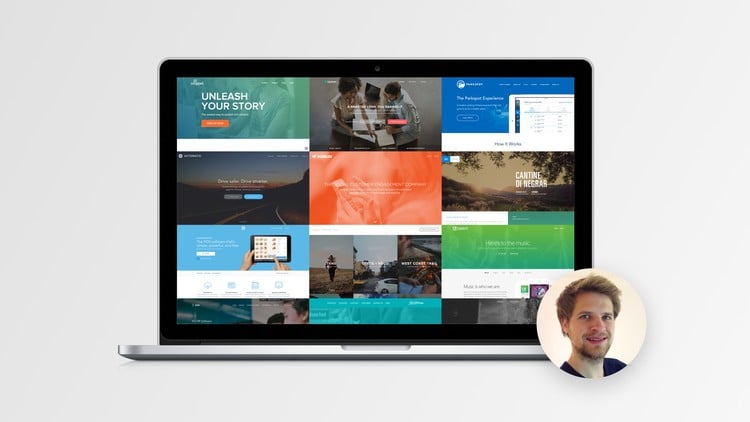
Canva Isn’t Just a Tool — It’s the New Language of Visual Communication.
And the good news?
You don’t need to be a designer to speak it fluently.
If you’re reading this, chances are you’ve got ideas—big ones.
You want your brand to stand out.
You want your social posts to look sharp.
You want to make something that feels professional... without hiring anyone.
But every time you open a blank screen, you feel stuck. Overwhelmed.
“Where do I even start?”
This course is the answer.
Canva Mastery for Beginners is not just another tutorial...
It’s your complete system for learning how to design with confidence, even if you’ve never made a single graphic in your life.
No jargon.
No fluff.
Just the exact tools, steps, and strategies used by creators, marketers, freelancers, and entrepreneurs across the world — all broken down so that you can do it too.
Inside, you'll go from confused to confident as you learn how to actually use Canva to build your brand, boost your content, and make designs that get noticed — with real-world projects, templates, and over 10 downloadable resources you can use right away.
You’ll walk away not just with Canva skills…
…but with actual content done — like your resume, pitch deck, lead magnet, social posts, and more.
And yes — there are assignments, homework, and extra modules on building presentations that wow (not yawn).
Because you don’t need more theory.
You need results.
Let’s Start at the Beginning...
If you’ve never touched Canva before, you’re exactly where you need to be.
No pressure. No tech headaches. No gatekeeping.
This module is your soft landing — the on-ramp to the Canva highway.
In just 30 minutes, you’ll go from “What is this tool?” to “Whoa, I just made something I’m proud of.”
Here’s What You’ll Learn in Module 1:
What is Canva (Web & Mobile)?
We break down what Canva really is — and why it’s become the go-to design platform for marketers, creators, educators, and business owners worldwide.
You'll see how it works on both desktop and mobile, so you can create wherever inspiration strikes — at your desk, on the train, or even during lunch.
Free vs. Pro: What You Actually Need
No sales pitch here. Just a clear, honest breakdown of the Free and Pro features.
You'll learn what’s available for free, what’s worth upgrading for, and how to work around limitations if you’re on a tight budget.
Navigating the Canva Dashboard
The dashboard can feel like a candy store... or a maze.
We simplify everything. You’ll learn where things live, how to find what you need fast, and how to organize your designs like a pro — even on Day 1.
Creating Your First Design: Step-by-Step
This isn’t just theory. You’ll be guided through your first actual Canva design.
We’ll pick a simple, high-impact project (like a social media post or a resume header), and walk through it click-by-click — so you can build your confidence with real action.
By the end of Module 1, you’ll be able to:
Open Canva and know exactly what to do
Understand the platform's layout and features
Decide whether Canva Free or Pro is right for you
Create your first design and hit “Download” with pride
This is where you build your foundation — so everything else in the course feels simple, intuitive, and exciting.
Before You Try to “Design Something Cool,”
Let’s get your toolbox in order.
Most beginners get stuck because they don’t understand what Canva can actually do.
They fumble with text, drag things around randomly, or spend hours on one post that still looks... off.
This module fixes that.
We’re going to demystify Canva’s tools — one by one — so you can stop guessing and start designing with purpose.
What You'll Learn in Module 2:
Choosing the Right Canvas Size
Every platform needs different dimensions. Instagram post? Resume? YouTube thumbnail?
We’ll show you how to pick the right size (or custom size) from the start — so your designs always look clean, professional, and platform-ready.
Using Templates Effectively
Canva’s templates are a goldmine — if you know how to use them right.
You’ll learn how to find high-quality templates, customize them properly, and avoid the “it still looks like a template” problem.
Working with Text: Fonts, Sizes, Alignment, Spacing
Text makes or breaks your design.
We’ll walk you through how to pick fonts that match your message, create hierarchy with sizing, and use alignment + spacing like a pro (even if you’ve never studied design).
Working with Images: Upload, Crop, Frames, Filters
Whether it’s a selfie or stock photo, we’ll show you how to:
Upload and organize images
Crop them cleanly
Place them in beautiful frames
Use filters and edits that enhance, not distract
Adding and Customizing Elements
Canva is packed with icons, shapes, lines, and stickers.
You’ll learn how to add them to your canvas, resize, recolor, and layer them for that polished, “How did they do that?” look.
Layers, Grouping, and Positioning Tools
This is where you go from beginner to actually in control.
You’ll learn how to group elements, layer them properly, and use Canva’s position tools to make everything snap into place — quickly and cleanly.
By the end of Module 2, you'll be able to:
Set up any design with the correct size and layout
Use templates to create designs fast (and make them your own)
Add and format text, images, and elements like a pro
Control your layout using grouping, layering, and alignment tools
Create clean, professional-looking designs that feel effortless
This is the module where you stop being afraid of the tools — and start having fun with them.
Because when you know how Canva works, your creativity finally has room to breathe.
Good Tools Aren’t Enough.
Great design comes from knowing how to use them — the right way.
Canva gives you all the elements: fonts, colors, shapes, images.
But if you don’t understand design fundamentals, it’s easy to end up with messy layouts, clashing colors, and text that no one wants to read.
This module changes that.
We’re not talking about “design theory” in an art school way.
We’re talking about the real-world stuff that makes Canva designs stand out — even if you’re starting from zero.
What You’ll Learn in Module 3:
Basic Layout & Composition
How do you organize your elements so they feel balanced and intentional?
We’ll break down white space, alignment, grid structure, and placement — so you can design with flow, not friction.
Color Theory Made Simple
Choosing colors shouldn't feel like guesswork.
You'll learn the basics of contrast, complementary colors, and creating Canva color palettes that are both consistent and scroll-stopping.
Typography Without the Confusion
Fonts have power — when used right.
We’ll show you how to pair fonts, when to use serif vs sans-serif, and how to keep your text looking sharp, clean, and on-brand.
Visual Hierarchy: Make the Right Thing Pop
Your viewer’s eye needs guidance.
We’ll teach you how to use size, contrast, and spacing to control where people look first — so your message never gets lost.
Canva Style Guide Tool (Pro + Free Workarounds)
If you’re using Canva Pro, you’ll learn how to use the Brand Kit to store your colors, fonts, and logos.
On a free plan? No problem — we’ll show you clever ways to build your own mini-style guide so your designs stay consistent across the board.
By the end of Module 3, you’ll be able to:
Apply layout principles to any Canva project
Build a cohesive color scheme with confidence
Pair fonts like a pro (and know when to stop)
Guide attention with hierarchy — so your design works
Build or mimic a style guide to keep everything on-brand
This is where Canva stops feeling like a “drag-and-drop toy” and starts becoming a true design platform in your hands.
Because the difference between amateur and professional isn’t the software — it’s the principles.
And now, you’ll have them in your toolkit.
Your Brand Isn’t Just a Logo.
It’s how people recognize you, remember you, and trust you.
Whether you’re a freelancer, small business owner, content creator, or side hustler—your brand matters.
The way it looks, the way it feels, the way it shows up across every touchpoint.
This module shows you how to build and manage your brand inside Canva — without hiring a designer or spending months figuring it out.
What You’ll Learn in Module 4:
Creating a Brand Kit
Inside Canva Pro, you can save your brand colors, fonts, and logos into a “Brand Kit.”
This means you never have to hunt for your hex codes or guess which font to use.
No Pro? No problem — we’ll show you a workaround for free users too.
Designing a Logo from Scratch (or Template)
You don’t need Photoshop to create a clean, modern logo.
You’ll learn how to use Canva’s tools to build a custom logo — or customize a template — and export it in all the right formats (including transparent background).
Customizing Templates to Match Your Brand
Templates are great — but if they don’t look like you, they’re forgettable.
You’ll learn how to quickly apply your branding to any Canva template: swap colors, fonts, logos, and layouts — without starting from scratch.
Using Canva’s Brand Hub (Pro)
If you’re using Canva Pro, we’ll show you how to use the Brand Hub to manage multiple brand kits, assign roles for your team, and keep everything on-brand automatically.
Export Settings for Social Media & Print
Your designs need to look great everywhere — online and offline.
We’ll cover exactly how to export your assets in the right formats, sizes, and quality settings — whether it’s for Instagram, your website, or your printer.
By the end of Module 4, you’ll be able to:
Build a brand kit in Canva and apply it to all your designs
Design or edit a logo that’s professional, simple, and scalable
Keep all your graphics looking consistent across every platform
Save time by reusing branded templates
Export everything with confidence — no pixelated messes or weird sizing
Branding is what takes you from “just another account” to “the one I always recognize.”
This module makes branding doable, fast, and fun — even if you’re starting from scratch.
Let’s bring your brand to life — the right way.
Your Social Media Is Your Storefront.
And in a world where people scroll in seconds, your design has to stop the scroll.
You already have something valuable to share — a message, a product, a service.
But if your posts look bland, cluttered, or off-brand... they’ll get ignored.
This module teaches you how to design content that’s not just pretty — but effective.
So your visuals can finally match the value of what you offer.
What You’ll Learn in Module 5:
Instagram Posts, Reels Thumbnails & Carousels
From square posts to vertical reels covers and multi-slide carousels — you’ll learn how to design engaging content that feels modern, clean, and thumb-stopping.
Plus, how to batch-create a week’s worth of content in one sitting.
Facebook Banners and Posts
Facebook has its own design quirks. You’ll learn the correct dimensions, safe zones for text, and how to design banners that look amazing on both desktop and mobile.
YouTube Thumbnails & Channel Art
If you’re building a YouTube channel, your thumbnail is everything.
We’ll show you how to make bold, clear, clickable thumbnails — and design channel art that works on every device.
LinkedIn Banners & Post Templates
Your LinkedIn profile should look polished and professional.
Learn how to design cover images, post graphics, and lead-gen carousels that position you as an expert in your field.
Using Animations & Video Snippets in Canva
Want your post to move?
Canva lets you animate text, graphics, and even short videos. We’ll walk through adding motion the right way — so it enhances your design without distracting from the message.
By the end of Module 5, you’ll be able to:
Create scroll-stopping content for Instagram, Facebook, YouTube & LinkedIn
Understand social platform specs so nothing gets cropped or distorted
Design animated graphics and reels covers that grab attention
Batch and repurpose content with speed
Keep every post on-brand, every time
Static Posts Are the Past.
Animation is how you stop the scroll in 2025.
Your audience is used to fast-moving, eye-catching content — and Canva gives you the tools to deliver it without needing After Effects or a video editor.
In this module, we’ll show you exactly how to make your designs come alive — in a way that’s smooth, brand-consistent, and surprisingly easy.
You don’t need to be a motion designer.
You just need this playbook.
What You’ll Learn in Module 6:
Introduction to Animations in Canva
Get the lay of the land. We’ll walk you through Canva’s built-in animation tools — what they can (and can’t) do — and how to use them without overwhelming your viewer.
You'll learn:
The difference between page animations and element animations
What types of content benefit most from animation
How to keep motion smooth, clean, and professional-looking
Animating Texts
Learn how to animate headlines, subheadings, and captions to draw attention to key messages.
We’ll cover:
How to apply and customize Canva’s text animations
When to use bounce, fade, rise, typewriter, and more
Tips to avoid “over-animated” designs that look amateur
Perfect for: Instagram stories, reels thumbnails, quote graphics, and ads.
Animating Elements on Canva
Images, shapes, icons, stickers — anything can move with the right settings.
You’ll learn:
How to animate multiple elements in one scene
Layering animations for a professional feel
Timing tricks to create rhythm and flow
This is how you go beyond basic templates and start building polished content.
Commercial-Grade Animation
Here’s where we take it up a level.
You’ll follow along with a real-life walkthrough of how to create ad-level animation sequences using only Canva.
We’ll break down:
Design pacing and storytelling with motion
Matching animations to music or voiceover
How to make polished intros/outros for video content or UGC
This is what marketers and business owners use to sell with design — and now you will too.
By the end of Module 7, you’ll be able to:
Use Canva’s animation tools with intention and clarity
Make your posts more dynamic and engaging without overwhelming your audience
Animate text and visuals that feel modern and on-brand
Create videos and animated graphics you can actually use for reels, ads, stories, or YouTube intros
Confidently build content that looks like it came from a pro studio — all inside Canva
You’ve learned how to make static designs look beautiful.
Now it’s time to make them move.
Let’s add motion to your message — and watch your content come alive.
Camera-shy? Not a problem.
You don’t need to dance, point at text bubbles, or lip-sync to grow on social media.
Faceless content is one of the fastest-growing design trends in 2025 — and it’s perfect for creators, brands, and businesses who want to stay behind the scenes… but still stand out.
In this module, we’ll show you how to create high-performing, faceless visuals using Canva — with mood, meaning, and momentum.
What You’ll Learn in Module 8:
Introduction to Faceless Content
You’ll learn the psychology behind faceless content: why it works, how it connects emotionally, and why it’s often more relatable than traditional “talking head” content.
We’ll explore:
Why faceless posts outperform flashy influencer videos
What makes faceless design scroll-stopping
When to use lifestyle, surreal, or minimalist approaches
How to Create Lifestyle Faceless Content
Think wellness brands, mood boards, productivity tips, or cozy aesthetics.
We’ll guide you step-by-step through:
Choosing the right color palette and layout
Using photos, frames, and quotes for a “relatable” vibe
Where to find royalty-free faceless stock images that feel personal
This style is perfect for Instagram, TikTok covers, Pinterest pins, and calming content.
How to Create Surreal Faceless Content
Here’s where creativity meets storytelling.
Surreal designs use bold colors, shapes, textures, and abstract compositions to evoke emotion — without ever using a face.
You’ll learn:
How to blend elements into dreamlike, cinematic visuals
Using overlays, transparency, and layering tricks in Canva
Turning simple ideas into artful, eye-catching posts
Great for artistic brands, creators, and viral storytelling.
How to Create Minimalistic Faceless Content
Less is more — and sometimes, minimal content wins.
You’ll explore:
Using space, silence, and typography to make a statement
Black & white layouts, muted tones, and icon-led designs
Creating calming, clean visuals for tech, productivity, and design-forward brands
This aesthetic is perfect for personal brands, SaaS companies, and thought leaders.
By the end of Module 8, you’ll be able to:
Create 3 different styles of faceless content using Canva
Match each style to your brand voice and content strategy
Design visuals that are highly shareable and easy to batch
Stand out on social media — without ever needing to show your face
Use Canva tools creatively to evoke feeling, story, and presence
Faceless doesn’t mean forgettable.
With the right design style, you can build a powerful visual identity — without ever being on camera.
This module gives you the freedom to create content your way.
Let’s get started.
Canva isn’t just a design tool — it’s a collaboration platform.
Whether you're a freelancer, content creator, agency team member, or small business owner, you're not always working alone.
And even if you are — you're still juggling versions, edits, feedback, and file chaos.
This module teaches you how to turn Canva into your organized, streamlined workspace — where designs stay on-brand, revisions are easy, and sharing is a breeze.
What You’ll Learn in Module 9:
Sharing Designs for Viewing, Editing, and Commenting
Not all shares are created equal.
We’ll show you the difference between sending someone a view-only link, an editable link, or inviting them into your Canva team space.
You’ll learn:
How to control who can edit, comment, or view your designs
Sending links that expire or restrict access
Best practices for client work, team projects, and student feedback
Using Folders and Team Spaces
If you’ve got dozens of designs and assets floating around — it’s time to organize.
You’ll learn:
How to use folders to keep personal, client, and brand projects separate
How to share folders with collaborators
How to use Canva’s “Team Space” to create a shared hub for assets, templates, and feedback loops
This turns your Canva into a professional design library, not a cluttered mess.
Version Control and Feedback Workflows
Sick of “Final_Final_Updated_2” file names?
We’ll show you how to:
Use Canva’s version history to roll back changes
Leave timestamped comments and replies right on the canvas
Review and approve changes without sending endless emails or screenshots
Whether you're getting feedback from a client, boss, or collaborator, this keeps your workflow clean and clear.
Publishing Directly to Social Platforms
Done designing? Send it live.
We’ll walk you through how to connect your Canva account to platforms like:
Schedule posts, publish instantly, or export correctly — no need to jump between platforms.
By the end of Module 9, you’ll be able to:
Share your Canva designs securely and smartly
Create team spaces and folders that boost productivity
Manage feedback like a pro — no more scattered email threads
Publish designs directly or prepare them for handoff
Organize your design system like a real business, not a hobby
This is the module that makes Canva feel less like a tool… and more like a system.
Let’s make your creative process collaborative, professional, and friction-free.
You know how to use Canva.
Now it’s time to use it like a pro.
This module is all about unlocking Canva’s advanced features — the ones most beginners don’t even know exist.
You’ll learn how to cut your design time in half, level up your creativity, and tap into Canva’s powerful AI tools that do the heavy lifting for you.
This is where good designers become efficient designers — and where Canva starts to feel like your unfair advantage.
What You’ll Learn in Module 10:
Introduction to Canva AI & Magic Edit
AI is changing how we create — and Canva is ahead of the curve.
We’ll show you:
How to use Magic Edit to remove, replace, or reimagine parts of your design
How to generate realistic visuals with AI-powered suggestions
How to make photo edits that look custom — without Photoshop
Perfect for thumbnails, client work, or content creation when you're short on time.
Magic Write & Canva Docs
Yes — Canva can now write for you.
Inside this lesson, you'll learn how to:
Use Magic Write to generate headlines, captions, quotes, and even full posts
Build visual documents like lead magnets or pitch proposals directly inside Canva Docs
Combine copy + design seamlessly in one workflow
This saves hours and removes writer’s block for good.
Frame Mastery + Frame Letter Designs
Frames aren't just photo holders — they’re branding weapons.
You’ll learn:
How to create frame letter designs (photos inside text shapes)
Build creative slide layouts using frames + images
Make content that looks premium and print-ready with minimal effort
If you’ve seen those viral text-over-image posts — this is how they’re made.
Creating Beautiful Presentations Using Frames
We take presentation design to the next level with Canva’s new layout tools.
No more boring slide decks — just smooth, minimal, brand-consistent slides.
You’ll learn:
Slide structuring that tells a story
How to use visuals, transitions, and frames to create flow
Make pitch decks, webinars, or internal docs that look studio-made
Mockups: Present Your Work Like a Pro
Even the best design needs great presentation.
You’ll learn how to:
Use mockup templates to showcase designs in phones, laptops, packaging, and print
Make product previews for Etsy, client portfolios, or launch graphics
Turn basic visuals into high-converting promotional content
By the end of Module 10, you’ll be able to:
Use Canva’s built-in AI tools to speed up your workflow
Remove design blockers with Magic Edit, Magic Write, and frame templates
Create content that looks premium — even when built fast
Present your work with polish and confidence
Unlock Canva’s full potential as a creative assistant, not just a design tool
This is the module that takes you from “Canva user” to creative problem-solver.
You’re not just learning tricks — you’re learning how to think like a high-level designer, with tools that scale your ideas into real-world visuals faster than ever before.
Let’s move fast and make beautiful things.
Canva Isn’t Just for Creativity — It’s a Business Tool.
You’ve learned how to design. You’ve built real projects.
Now let’s talk about turning that skill into revenue.
Whether you want a side hustle, a freelance service, or a new digital product line, this module gives you step-by-step strategies to monetize what you know — even if you’re starting from scratch.
You don’t need followers. You don’t need fancy gear.
You just need Canva… and a plan.
What You’ll Learn in Module 11:
Introduction to Canva Monetization
We start with the big picture:
How people are making money every day using Canva
What business models work best for beginners
The difference between active vs. passive Canva income streams
What niche you might fit into
This gives you clarity, direction, and a blueprint to follow.
Selling Canva Templates (Etsy, Gumroad, Creative Market)
Digital products are exploding — and Canva templates are leading the charge.
You’ll learn:
What types of templates are in demand right now (and how to research them)
How to create & package templates for resale
Where to sell: Etsy, Gumroad, Creative Market, your own site
How to protect your work and stand out in crowded marketplaces
Whether it’s social media kits, planners, pitch decks, or resumes — you’ll leave with a product-ready game plan.
Freelancing with Canva Designs
Don’t want to sell products? Sell services.
We’ll show you how to:
Build a simple freelance portfolio using Canva
Offer high-value services like branding kits, social media graphics, and lead magnet design
Use platforms like Fiverr, Upwork, Contra, and social media to find your first (or next) client
Price your services without guessing — even as a beginner
You’ll also get tips on working with clients, managing feedback, and setting expectations like a pro.
Using Canva for Small Business Marketing
Maybe you’re not freelancing or selling templates. Maybe you’re growing your own business.
This lesson will show you how to:
Use Canva to design content calendars, ads, and promos
Build landing page graphics, email visuals, and brand assets
Systemize your marketing — so Canva becomes part of your growth engine
This is where Canva becomes a business weapon, not just a creative tool.
By the end of Module 11, you’ll be able to:
Identify the best monetization path based on your goals and strengths
Create and sell digital Canva products on popular marketplaces
Offer design services confidently and professionally
Market your own business using Canva for visuals, content, and branding
Start earning from your design skills — with zero upfront investment
You don’t need to be a “designer” to make money with Canva.
You just need to know how to package, position, and promote what you’ve already learned.
This module gives you the path — all you have to do is take the first step.
Let’s turn your Canva skills into cash.
Canva Isn’t Just for Creativity — It’s a Business Tool.
You’ve learned how to design. You’ve built real projects.
Now let’s talk about turning that skill into revenue.
Whether you want a side hustle, a freelance service, or a new digital product line, this module gives you step-by-step strategies to monetize what you know — even if you’re starting from scratch.
You don’t need followers. You don’t need fancy gear.
You just need Canva… and a plan.
What You’ll Learn in Module 11:
Introduction to Canva Monetization
We start with the big picture:
How people are making money every day using Canva
What business models work best for beginners
The difference between active vs. passive Canva income streams
What niche you might fit into
This gives you clarity, direction, and a blueprint to follow.
Selling Canva Templates (Etsy, Gumroad, Creative Market)
Digital products are exploding — and Canva templates are leading the charge.
You’ll learn:
What types of templates are in demand right now (and how to research them)
How to create & package templates for resale
Where to sell: Etsy, Gumroad, Creative Market, your own site
How to protect your work and stand out in crowded marketplaces
Whether it’s social media kits, planners, pitch decks, or resumes — you’ll leave with a product-ready game plan.
Freelancing with Canva Designs
Don’t want to sell products? Sell services.
We’ll show you how to:
Build a simple freelance portfolio using Canva
Offer high-value services like branding kits, social media graphics, and lead magnet design
Use platforms like Fiverr, Upwork, Contra, and social media to find your first (or next) client
Price your services without guessing — even as a beginner
You’ll also get tips on working with clients, managing feedback, and setting expectations like a pro
Using Canva for Small Business Marketing
Maybe you’re not freelancing or selling templates. Maybe you’re growing your own business.
This lesson will show you how to:
Use Canva to design content calendars, ads, and promos
Build landing page graphics, email visuals, and brand assets
Systemize your marketing — so Canva becomes part of your growth engine
This is where Canva becomes a business weapon, not just a creative tool.
By the end of Module 11, you’ll be able to:
Identify the best monetization path based on your goals and strengths
Create and sell digital Canva products on popular marketplaces
Offer design services confidently and professionally
Market your own business using Canva for visuals, content, and branding
Start earning from your design skills — with zero upfront investment
You don’t need to be a “designer” to make money with Canva.
You just need to know how to package, position, and promote what you’ve already learned.
This module gives you the path — all you have to do is take the first step.
Let’s turn your Canva skills into cash.
You’ve seen the modules.
This isn’t a surface-level Canva tutorial. It’s a complete system designed to take you from opening Canva for the first time to confidently creating professional, high-impact designs — and turning those skills into real results.
Here’s what you’re getting:
Module 1–2:
You’ll start with the basics. Understand Canva’s tools, master canvas sizes, work with text, images, templates, and get hands-on with real projects from day one.
Module 3–4:
Next, you’ll learn the design foundations used by professionals — layout, color, typography, and branding. Then build your own brand kit, logo, and reusable templates.
Module 5–6:
You’ll design social media content that actually performs. Instagram posts, reels, carousels, thumbnails, stories, presentations, and more — with guided real-world projects you’ll be proud to publish.
Module 7–8:
Level up your visuals with animation. Learn how to animate text, elements, and entire pages with a commercial polish. Then explore faceless content creation — the most in-demand content style of 2025 — and create high-performing visuals without ever showing your face.
Module 9–10:
Collaborate like a team. Share files, organize your assets, and publish directly from Canva. Then go even deeper with Canva’s newest AI tools, time-saving shortcuts, and mockup systems that make your work look premium in minutes.
Module 11–12:
Finally, learn how to turn your Canva skills into income. Sell templates, offer freelance services, or grow your own business using everything you’ve built. Wrap it up with a certificate that proves what you can do — and projects you can use right away.
If you want to stop feeling stuck every time you try to design something...
If you want to build content, branding, and visuals that people notice, click, and remember...
And if you want to do it all without hiring a designer, learning Photoshop, or wasting weeks watching random YouTube videos...
Then this course was built for you.
Enroll now. Start designing in minutes. And never stare at a blank canvas again.