
AutoCAD Civil 3D Complete Course Roads & Highways Design
Khóa học toàn diện AutoCAD Civil 3D: Thiết kế Đường bộ & Đường cao tốc

4.5
(1,644 đánh giá)
5,036 học viên

Giảng viên
Murad Farooq
Phụ đề tiếng Anh
Bán chạy
Đánh giá cao
50.000đ
399.000đ
-87%
Bao gồm phụ đề tiếng Việt, tiếng Anh
10.0 giờ video
84 bài giảng
Truy cập vĩnh viễn
Học trên mọi thiết bị
Cập nhật: 31/05/2026
Bạn sẽ học được gì
Yêu cầu
Khóa học này không yêu cầu cụ thể, chỉ cần một số kỹ năng cơ bản về AutoCAD và máy tính
Đã cài đặt Civil 3D (Bất kỳ phiên bản nào)
Đối tượng phù hợp
Nội dung khóa học
15 phần • 84 bài giảng
1
Giao diện AutoCAD Civil 3D
2
Giới thiệu Nút Ứng dụng
3
Tab Prospector
4
Chi tiết Cài đặt Cơ bản AutoCAD Civil 3D
5
Cửa sổ Panorama
6
Lệnh trong suốt (Transparent Commands) trong Civil 3D là gì?
7
Lệnh Tra cứu (Inquiry) trong AutoCAD Civil 3D
8
Quan hệ giữa các Lớp (Layer)
9
Cài đặt Đơn vị Bản vẽ và Vùng trong AutoCAD Civil 3D
10
Cài đặt Giao diện Người dùng (UI) AutoCAD Civil 3D
1
Thanh trạng thái và phím chuyển đổi
2
Nút Chuyển đổi Nhập liệu Động (Dynamic Input)
3
Nút Chuyển đổi Bắt điểm Đối tượng (Object Snap)
4
Nút Chuyển đổi Chế độ Ortho (Orthomode)
5
Chế độ Theo dõi Cực (Polar Tracking) và Theo dõi Bắt điểm Đối tượng (Object Snap Tracking)
6
Tất cả các Phím Chuyển đổi Còn lại
7
Buổi Thực hành
1
Giới thiệu Lô đất
2
Thuộc tính và Nhãn của Lô đất
3
Chia nhỏ Lô đất và Đường Trượt (Slide Line)
4
Chỉnh sửa Đường Trượt
5
Tạo và Chỉnh sửa Đường Xoay (Swing Line)
6
Tạo Dạng Tự do (Free Form) và các Tùy chọn Khác
7
Hợp nhất và Phân tách Lô đất (Parcel Union & Dissolve)
8
Bảng Lô đất, Thuộc tính Bảng và Kiểu (Style)
9
Báo cáo Dữ liệu Lô đất và Xuất Bảng
1
Giới thiệu Điểm
2
Tạo Điểm Thủ công
3
Tạo Điểm trên Đường đa tuyến (Polyline)
4
Chỉnh sửa Điểm
5
Nhập Nhóm Điểm Phần-1
6
Nhập Nhóm Điểm Phần-2
7
Thuộc tính & Cài đặt Nhóm Điểm
1
Giới thiệu Bề mặt
2
Tạo Bề mặt từ tệp CSV
3
Xóa các đường thừa khỏi Bề mặt
4
Thay đổi Khoảng cách Đường đồng mức và Làm mịn Đường đồng mức
5
Kiểu Bề mặt (Surface Style)
6
Tạo Bề mặt từ các Đối tượng Khác: Đường đa tuyến, Điểm AutoCAD, DEM, Điểm 3D
7
Thêm Nhãn vào Bề mặt
8
Lưới trên Bề mặt
9
Phân tích Bề mặt
10
Bảng & Dữ liệu Phân tích Bề mặt
11
Xuất và Nhập Bề mặt
1
Giới thiệu Tuyến đường
2
Công cụ Tạo Tuyến đường
3
Vẽ Tuyến đường chi tiết
4
Trình chỉnh sửa Hình học Tuyến đường (Alignment Geometry Editor)
5
Cách Thay đổi Bán kính Đường cong
6
Tạo Tuyến đường Lệch (Offset Alignment)
7
Tạo Tuyến đường từ Đối tượng
8
Tạo Điểm trên Tuyến đường và trên Tuyến đường Lệch
9
Nhãn và Báo cáo Tuyến đường
1
Tạo Mặt cắt Dọc từ Bề mặt
2
Vẽ Mặt cắt Dọc Thiết kế
3
Chỉnh sửa Nhãn Mặt cắt Dọc
4
Vẽ Mặt cắt Dọc mép lề hiện trạng lệch trên Khung nhìn Mặt cắt Dọc
5
Tạo Mặt cắt Dọc Chồng lớp (Superimposed Profile)
6
Cách thêm và Chỉnh sửa Dải Mặt cắt Dọc riêng Phần-1
7
Cách thêm và Chỉnh sửa Dải Mặt cắt Dọc riêng Phần-2
8
Thêm Dải Hình học Ngang và Dọc
9
Lưu và Nhập Dải Mặt cắt Dọc
1
Cách Tạo Bộ phận Mặt cắt Ngang
1
Siêu cao là gì?
2
Vẽ Khung nhìn và Dải Siêu cao
3
Xuất Dữ liệu Siêu cao
1
Hành lang là gì và Cách tạo Hành lang
2
Bề mặt Hành lang
3
Đường mẫu (Sample Lines)
1
Tạo Mặt cắt Ngang Đường
2
Chỉnh sửa Kiểu Khung nhìn Mặt cắt Ngang
3
Thuộc tính Khung nhìn Mặt cắt Ngang
4
Thêm Dải vào Nhiều Mặt cắt Ngang
5
Chỉnh sửa và Thêm Bộ mã (Code set) cho Mặt cắt Ngang
6
Tính toán Khối lượng Đào Đắp cho Khối lượng Đất Đường bộ bằng Bảng Khối lượng (Vol Table)
7
Báo cáo Khối lượng
1
Tạo Bản vẽ Thiết kế và Tạo Khung Mặt cắt Dọc
2
Tạo Bản vẽ Thiết kế và Tạo Trang Mặt cắt Dọc
1
Cách Thiết kế Vòng xuyến Đường trong AutoCAD Civil 3D
1
Giới thiệu về Tạo Đường Đặc trưng (Feature Lines)
2
Cách Vẽ Nhanh một Mặt cắt Ngang
3
Cách Tạo Bảng Bề mặt
4
Cách Tính toán Khối lượng Đào Đắp
1
Báo cáo Cơ sở Thiết kế Đường cao tốc
Giới thiệu khóa học
Complete Training AutoCAD Civil 3D for Beginners and Intermediate Users - A Complete Guide to AutoCAD Civil 3D and Detailed Road, highways, and Rounabout Design
This course was created to show you how I build successful Design a Complete Road and open channel, Roundabout in AutoCAD Civil 3D, in 2023 and beyond I'll take you from the very beginning and show you, over-my-shoulder, how I:
Significant Highlights of The Course.
The Civil 3D Interface
What is Autodesk Civil 3D
Navigating the User Interface
Civil 3D Ribbons
Tool Space Prospector
Tool Space Settings
Properties Palette
Tool Palettes Transparent Commands
The Panorama Window.
Toggle key and Status Bar
Grid mode and snap mode
Dynamic Input Toggle Button
Object Snap Toggle Button
Orthomode Toggle Button
Polar Tracking mode and Object Snap Tracking
Remaining all Toggle Keys
Import Points and Basic Setting
1. Drawing Settings
2. Unit settings
3. Points by Manual method
4. Draw Points Northing Easting and Elevation
5. Import Points as CSV and TXT File
6. Points Group Settings
7. Points Details
8. Points Editing
9. Points Label
Import points and basic settings Drawing Settings
1. Unit settings
2. Points by Manual
3. Points Northing and Easting
4. Import from MS Excel
5. Points Group
6. Points details
7. Points editing
8. Points label
Alignment creation tools and Settings
1. Draw alignment (no curves)
2. Draw alignment (with curves)
3. Curve settings
4. Insert pi
5. Delete pi
6. Sub-entity editors
7. Pick sub-entity
8. Points editing
9. Alignment grid view
Alignment creation
1. Draw alignment
2. Alignment creation tools
3. Alignment properties
4. Alignment labels
5. Alignment style
6. Alignment of stations settings
7. Alignment of text settings
8. Complete alignment settings
1. Edit alignment geometry
2. Sub-entity editor
3. Layout parameter
4. Alignment grid view
5. Explain the curve and line
6. Create alignment offset
7. Create all alignment reports
1. Explain offsets
2. Create points on alignment
3. Measure Alignment
4. Show label on points
5. Export to excel as a CSV file
CURVE WIDENING AND ALIGNMENT OFFSET
1. Create Widening
2. Widening Parameters
3. Transition Parameters at Entry
4. Transition Parameters at Exit
5. Create Alignment Offsets with Widening
6. Applying Widening Design Criteria As Per AASHTO Standards
7. Specify Widening Manually
8. Edit offsets parameters
9. Add Automatic Widening
Create Surface Profile
1. Profile Creation Tools
2. Create a Profile from Surface
3. Create Profile View
4. Draw in Profile View
5. Station Ranges
6. Draw profile view height (Automatic/User Specified)
7. Profile Display Options
8. Initial Data Band Adjustment
9. Profile View Styles
10. Profile Horizontal and Vertical Axes Adjustment
11. Profile Graph Scale Setting
Create a Design Profile on an existing profile
1. Profile Creation Tools
2. Create a Profile from Surface
3. Create Profile View
4. Draw in Profile View
5. Initial Data Band Adjustment
6. Bands View Elevation Adjustment
7. Profile View Styles
8. Profile Horizontal and Vertical Axes Adjustment
9. Vertical Curve Setting
10. Create a Design Profile on an Existing Profile
11. Insert New PVI
12. Delete PVI.
13. Delete or Create Entity
14. Profile Grid View
Add & edit own profile bands
1. Edit Profile View Styles
2. Work with Profile Graph Scale and Grids
3. Profile View Properties
4. Delete Existing Profile Band
5. Define Cut and Fill Area by Using Hatch Properties
6. Create New Profile Bands
7. Band for Existing Elevation
8. Band for Designed Elevation
9. Band for Station
10. Band for Cut and Fill Elevation
11. Adjust Profile Elevations Ad per Band Styles
Displaying Horizontal and Vertical Geometry in Profile Bands
1. Vertical Geometry or Vertical Curve Data
2. Horizontal Geometry or Horizontal Curve Data:
3. Create Data Bands
4. Edit in Vertical Geometry Band Styles
5. Work with Band Details, Display Components, etc.
6. Compose labels for Geometry
7. Edit in Geometry Layout
8. Create New Mathematical Expressions
9. Edit Profile Labels
10. Work with Dimension Anchor Values
11. Displaying Compose Labels in Profile Bands
Save and Import Profile Band Styles
1. Create and Save Data Bands Style
2. Create a Profile Without Bands
3. Import the Data Band File
4. Import Save Data Bands by Profile View Properties
5. Import Profile Data Bands
6. Import and Edit Profile Labels
7. Adjust Profile Elevation As per Layout
Create Assembly in Civil 3D
1. Create Assembly Base Line
2. Sub-assemblies Properties
3. Sub-assembly Parameters
4. Add Lane Sub-assemblies
5. Add Shoulder Sub-assemblies
6. Add Curb Gutter Sub-assemblies
7. Add Sidewalk Sub-assemblies
8. Add Road Barrier
9. Add Daylight Cut/Fill Slope
10. Edit Parameters after Composing
Create Superelevation in Civil 3D
1. Calculate or Edit Superelevation
2. Edit Superelevation Curve Manager
3. Select Roadway Type, Lanes, Shoulder Control, Attainment
4. Edit Superelevation Label
5. Draw Critical Points Data of Superelevation
6. View Tabular Editor
7. Create/Draw Superelevation View
8. Specify Color in Superelevation Display Option
9. Draw/Show Superelevation Band in #Road #Profile View
10. Export Superelevation Data to Excel (CSV format)
11. View Superelevation in Road Cross Sections
12. Calculate Super Elevation after #Corridor Rebuild
13. Superelevation Report
Create Road Corridor in Civil 3D
1. Create Assembly Base Line
2. Sub-assemblies Properties
3. Sub-assembly Parameters
4. Add Lane, Shoulder, and Daylight Sub-assemblies
5. Edit Parameters after Composing
6. Create Corridors
7. Assigning Base Line and Region Parameters of Corridor
8. Assign Frequency
9. Target Mapping of Corridor
10. Rebuild the Corridor
11. Analyze the Drive of the 3D View of the Road
12. Super Elevation in Corridor
Corridor surface and sample lines on the corridor
1. Corridor Properties
2. Create Corridor Surface
3. Create Corridor Boundaries
4. Rebuild Corridor
5. Create Sample Lines
6. Adjust Data Source for SL Groups
7. Adjust Station Range, Swath width, Sampling -- increments & Sampling, Controls
8. Draw Sample Lines on Corridor
Make Road Cross Section
1. Create Multiple Section Views (General, Section Placement, Offset range, Elevation Range, Section Display option, Data Bands)
2. Edit Section View Style (Information, Graph, Grid, Title Annotation, Horizontal axes, Vertical Axes, Display, Summary)
3. Scale Adjustment and Update Group Layout
4. Section View Properties (Information, Offsets, Elevations, - - Sections, Bands, Volume tables, Profile grade lines)
5. Section View Group Properties (Ground Surface, Corridor, Finished ground)
6. Section Views (Change Band set, Add Bands, Change Volume
7. Table, Profile grade points, offset, and elevations)
8. Edit Code Set Style (Point Codes, Link Codes, Shape Codes)
9. Draw/Show Missing Code Set Styles in Cross Sections
10. Scale Adjustment for Section View and Road Profile
1. Create Multiple Section Views (General, Section Placement, Offset range, Elevation Range, Section Display option, Data Bands)
2. Edit Section View Style
3. Section View Properties
4. Section View Group Properties
5. Adjust the Section Option
6. Adjust Section View Group Bands (FG Elevation & EG Elevation)
7. Set Quantity Takeoff Criteria
8. Compute Materials
9. Generate Volume Report
10. Change and Insert Volume Tables with Sections
11. Insert Volume & Material Tables in the Drawing
12. Export Data Table to XML File & Excel File
Drawing Template for Plan Profile sheet creations
1. Create New Drawing Template
2. Page Setup Manager
3. Plotter Configuration Editor
4. Create Custom Paper Size (A0 or A3)
5. Adjust Plot Style Table
6. Create New Template with a Required Scale
7. Insert North Arrow and Scale Bar
8. Adjust Template on New Paper Size with Scale
9. Create New Frames and Sheets with Designed Template
Design Roundabout Civil 3D
1. Create Road Alignments
2. Create a Roundabout
3. Roundabout – Circulatory Road
4. Roundabout – Approach Roads
5. Roundabout – Islands
6. Regenerating Roundabout Model
7. Edit Roundabout Parameters
8. Add/Edit Road Approach Data
9. Add Turn Slip Lanes with a Roundabout
10. Add Road Signs and Markings
11. Edit with Turn Slip Lanes
Calculate Cut and Fill Surface Volume in Civil 3D
1. Import Surface Points
2. Create a Surface (Base and Comparison Surface)
3. Create Tin Volume Surface
4. Edit Surface Style (Display Settings)
5. Surface Properties
6. Apply Elevation Analysis on Current Surfaces
7. Create Elevation Banding on Surfaces (Base and Comparison Surface)
8. Create Cut Fill Banding on Volume Surface
9. Analyze Surface Volume
10. Work with Volume Dashboard
11. Insert Cut/Fill Summary
12. Generate Cut/Fill Report
13. Add Surfaces Legend Table for Elevation & Cut/Fill Banding
14. Label Spot Elevation on the Grid at the Surface (Cut/Fill Elevations)
Complete Design Basis Report for Client
1. Complete the Report
2. Design Standard
3. Superelevation details
4. Spiral details
5. Project details
6. Complete table information details
7. Location map and project map
8. Detailed design complete details
Pre-requisites
You must access AutoCAD Civil 3D software (student, trial, or commercial version) for this course. This course can be used with AutoCAD as well.
I wish you happy learning I hope the teaching will be memorable God Bless you.
Best Regards: Murad Farooq
50.000đ
399.000đ
-87%
Bao gồm phụ đề tiếng Việt, tiếng Anh
10.0 giờ video
84 bài giảng
Truy cập vĩnh viễn
Học trên mọi thiết bị
Cập nhật mới nhất: 31/05/2026
Khóa học liên quan
Khám phá thêm các khoá học cùng chủ đề


Khóa học toàn diện về AutoCAD Electrical 2021
CADCIM Technologies
4.2
(955)
69,769
50.000đ
509.000đ
-90%

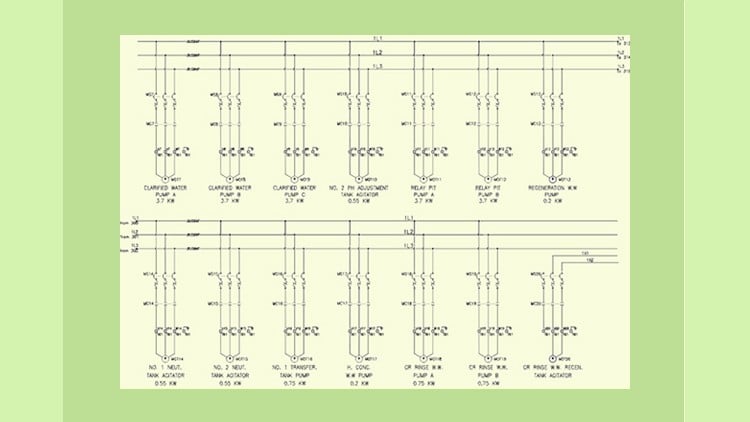
Khóa học hoàn chỉnh về AutoCAD Electrical 2022
CADCIM Technologies
4.4
(518)
22,796
50.000đ
1.219.000đ
-96%


AutoCAD Civil 3D - Khóa học MEGA về Công trình Dân dụng - AulaGEO
AulaGEO Academy
4.4
(883)
20,361
50.000đ
399.000đ
-87%

Dự Toán Xây Dựng, Định Lượng Và Lập Kế Hoạch Dự Án
Mudessar Afraz
4.4
(4185)
19,130
79.000đ
1.379.000đ
-94%


Catia V5 Từ Cơ Bản Đến Nâng Cao - Ứng Dụng Ô Tô và Công Nghiệp
Alexander Consulting
4.6
(6125)
26,497
79.000đ
369.000đ
-79%

Khóa học toàn diện Rhino: Từ Cơ bản đến Chuyên gia
Skillademia Academy
4.4
(182)
18,845
50.000đ
349.000đ
-86%

Fusion 360 dành cho người đam mê DIY và thợ mộc
Michael Moyer
4.5
(3481)
16,457
50.000đ
569.000đ
-91%

SOLIDWORKS: Trở thành Chuyên viên Chứng nhận Ngay Hôm Nay (CSWP)
Tayseer Almattar
4.6
(3536)
16,447
50.000đ
359.000đ
-86%

AutoCAD Civil 3D - Khóa học MEGA về Công trình Dân dụng - AulaGEO
AulaGEO Academy
4.4
(883)
20,361
50.000đ
399.000đ
-87%
MS-Excel dành cho Kỹ sư Xây dựng – Lập Kế hoạch Dự án từ Con số 0
Akshay Kamath
4.5
(267)
14,026
50.000đ
1.239.000đ
-96%
![AutoCAD cho Kỹ sư Xây dựng + Cơ bản về Revit – 2 trong 1 [2026]](https://studyvn.academy/assets/uploads/course_6a1802ba824c9.jpg)
AutoCAD cho Kỹ sư Xây dựng + Cơ bản về Revit – 2 trong 1 [2026]
Akshay Kamath
4.4
(334)
13,884
50.000đ
1.239.000đ
-96%

STAAD Pro: Hướng Dẫn Toàn Diện Cho Người Mới Bắt Đầu
Gokul Saud
4.2
(2999)
13,085
50.000đ
1.179.000đ
-96%

Thực tập 45 ngày tại công trường xây dựng năm 2026
Akshay Kamath
4.4
(962)
11,658
79.000đ
399.000đ
-80%

Trại Huấn Luyện 6 Tuần Cho Kỹ Sư Xây Dựng & Dân Dụng Từ Con Số 0
Akshay Kamath
4.6
(232)
11,187
79.000đ
399.000đ
-80%

Khóa học Chuyên sâu Kỹ sư Hiện trường – Phương pháp Thi công Xây dựng -2026
Akshay Kamath
4.8
(1844)
10,267
79.000đ
1.439.000đ
-95%

Khóa học Thiết kế Hệ thống Thoát nước Mưa trong Cấp thoát nước 103 (Từ A đến Z)
ExpertEase Global
4.4
(95)
8,730
50.000đ
929.000đ
-95%

AutoCAD Civil 3D - Khóa học MEGA về Công trình Dân dụng - AulaGEO
AulaGEO Academy
4.4
(883)
20,361
50.000đ
399.000đ
-87%

Chuẩn bị thi AZ-305: Thiết kế giải pháp hạ tầng Azure
Thomas Mitchell
4.7
(827)
5,818
50.000đ
349.000đ
-86%

AZ-305 Thiết kế Hạ tầng Microsoft Azure với SIMS!
John Christopher | 490,000+ enrollments
4.6
(496)
4,374
50.000đ
1.769.000đ
-97%

AZ-305 Thiết kế Hạ tầng Microsoft Azure - Thực hành Lab & Ôn thi
Venkatesh Muniyandi
4.5
(321)
3,103
50.000đ
399.000đ
-87%

Thiết kế đường bộ với AutoCAD Civil 3D + Thiết kế kênh hở
Murad Farooq
4.7
(583)
1,947
50.000đ
399.000đ
-87%
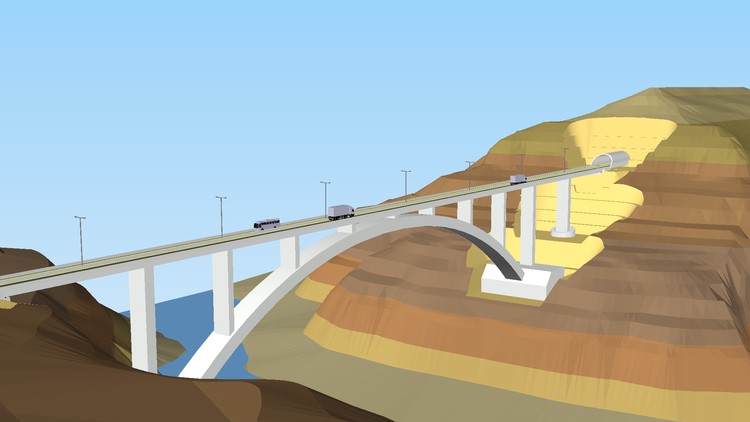
Khóa học Civil3D Cổ điển (Đường bộ, Đường hầm & Cầu vòm)
Ali Abdollahi
4.5
(65)
288
50.000đ
399.000đ
-87%

Chuẩn bị cho Kỳ thi AZ-305: Thiết kế Giải pháp Hạ tầng Azure
Renuka Kadiyam
5.0
(28)
105
10.000đ
349.000đ
-97%
