We want to take you from zero to 60 with your OBS knowledge as fast as possible and a complete course update is the best way to get you going! This course will feature OBS 22 and review all the new bells and whistles, plus we will take the time to review how you can build the graphical assets you will need to create a stunning live streaming presentation. Unlike most of the other OBS courses available today this course is designed for live video production NOT video gaming. So it’s perfect for churches, businesses, and educators looking to make dynamic video presentations online.
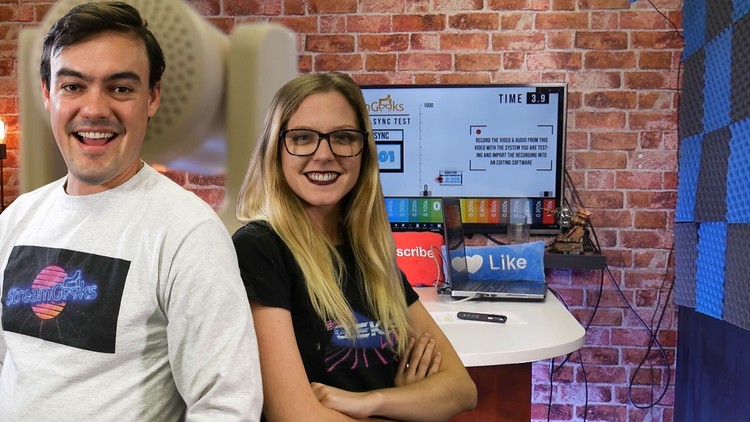
We will start with an interface overview followed by a 15 minute zero to sixty presentation where we will go from this to this. We will show you all the essential shortcuts inside OBS helping you create an informational ticker, integrate your live chat room, build a split screen scene and make a picture in picture presentations that look amazing. Once you are up and running with OBS we are going to talk about the most important issue almost every OBS user has. We will learn how to properly sync up our video and audio sources using a brand new tool I have designed that is accurate to a hundredth of a second.
After hosting my OBS course on UDEMY for over 3 years, I have decided to rethink the course layout. Once we have covered all the basics, I am going to create short tutorial videos that you can choose to checkout al-la-carte. In this way, you can peruse through the available tutorials and choose the instructions that best suite your project.
Looping a Video in OBS
Adding a Webcam in OBS
Creating a Picture in Picture in OBS
Cropping a Layer in OBS
Enabling Hardware Encoding
Stopping dropped frames in OBS
Basic Color Correction in OBS
Using a LUT to color grade OBS
Creating an image mask in OBS
Once, we have covered the basics and created a stellar looking video presentation in OBS it’s time to look at the incredibly new and advanced OBS features including the NewTek NDI. We will review how you will be able to use a live telestrator to annotate on your presentations, we will cover multicamera setups, controlling cameras from OBS studio and VST plugins. We will get your audio sounding amazing and your video looking sharper than ever. So, what’s left? Let’s get started!
Video Production Feature Overview
Interface Overview in Studio Mode
Create a new Scene Collection
Rename the Scene - Main
Duplicate Main Scene with Ticker
Lock Icons
Make Text Move - Right click goes into filters. Click the plus sign and go to scroll.
Duplicate Main Scene - Camera with Chat
Popout Chat
CSS Code
Basic Split Screen
Transition to the scene when double clicked
Streaming and Recording Settings Overview
Output Scaling on Video page uses Graphic Card
Video Settings will scale processing on your graphics card rather than the CPU
If you scale the output here you
If you are recording the output will be here
Frame Per Second and Bandwidth
Output Page - Advanced Section
X264 uses CPU - NVIDIA uses the graphics card
CBR
Bitrate
Rescale with the processor itself
Rate Control - Choose CBR
Recording
Mp4 on SSD
Choose Audio Track
Warning about crash
Run encoder on CPU or graphics card
Pass what the streaming encoder is doing to recording
For recording, you can use VBR Variable Bit Rate.
Audio Tracks
Stream at 128k, Recording at 320k
On Streaming / Recording Tabs - Set Appropriate Audio Tracks
Advanced Audio Properties - Route audio to the correct tracks
Audio Page
Sample Rate - Sync Issues - Most video sources are at 48kh
If input source is video device change to 48kh
Best sound on Facebook should be mono
Maximize streaming quality with Mono - Maximize Recording Quality with Stereo
Streaming Dropped Frames
CPU could be a source of Dropped Frames
Or internet connection to see if that is why you have dropped frames
Check bitrate. If it is not what you have set it for your internet is not working properly.
OBS 22 Course Update
New Audio Sync Tool
Modular UI
Hotkeys
Multiview
New Themes
Studio Mode
Audio Monitoring
NDI Options for OBS
Stinger Transitions
Audio Overview and Solving OBS Audio Sync Issues
Audio Mixer
Audio Monitoring
Audio Tracks
VST Plugins
Recording Video Overview
Using Hotkeys
Using the Multiview
New PTZ Controller
Audio Monitoring in OBS
Setting up OBS to work with NDI
NDI Options for OBS
Telestrator
Camera
Connecting multiple OBS systems together
Stinger Transitions in OBS
About the Author:
I am a Live Streaming Expert and Chief Streaming Officer for PTZOptics. PTZOptics is an industry leader in affordable live streaming technology. We host a live show on YouTube Live & Facebook every Friday and we hope to help the world better understand live streaming and technology it takes to produce amazing video content! This show is the basis of our live streaming innovation where you can learn q